The HPC

🥇 Expected Outcomes 🥇
- Being able to log onto the HPC and start an interactive node
- Know basic HPC related commands
- Being able to search and load specific software
In this lesson, are going to concentrate on HOW to operate the HPC system as a general user.
If you have a UA account, to connect to the HPC you need to use ssh (Secure Shell). Open a terminal, and type:
ssh <UA username>@hpc.arizona.edu
Type your UA password and if successful you'll be greeted with a two-factor login. Select which choice, and complete the authentification. Once you are past the authentification steps, you will enter the Bastion server. This step has 2 purposes:
- Protect from attacks.
- Select what HPC system you want to use.
shell in order to select what system you want to use.
The whole process (from logging to selecting the system) looks like the following:
ssh cosi@hpc.arizona.edu
(cosi@hpc.arizona.edu) Password:
(cosi@hpc.arizona.edu) Duo two-factor login for cosi

Enter a passcode or select one of the following options:

 1. Duo Push to XXX-XXX-8418
 2. SMS passcodes to XXX-XXX-8418

Passcode or option (1-2): 1
Success. Logging you in...
Last login: Tue Mar 26 14:52:39 2024 from dhcp-10-132-212-1.uawifi.arizona.edu
This is a bastion host used to access the rest of the RT/HPC environment.

Type "shell" to access the job submission hosts for all environments
-----------------------------------------

[cosi@gatekeeper ~]$ shell
Last login: Wed Mar 20 10:30:25 2024 from gatekeeper.hpc.arizona.edu
***
The default cluster for job submission is Puma
***
Shortcut commands change the target cluster
-----------------------------------------
Puma:
$ puma
(puma) $
Ocelote:
$ ocelote
(ocelote) $
ElGato:
$ elgato
(elgato) $
-----------------------------------------

[cosi@wentletrap ~]$ ocelote
(ocelote) [cosi@wentletrap ~]$
At this point you are in the Login Node, where you can submit jobs or ask for an interactive node.
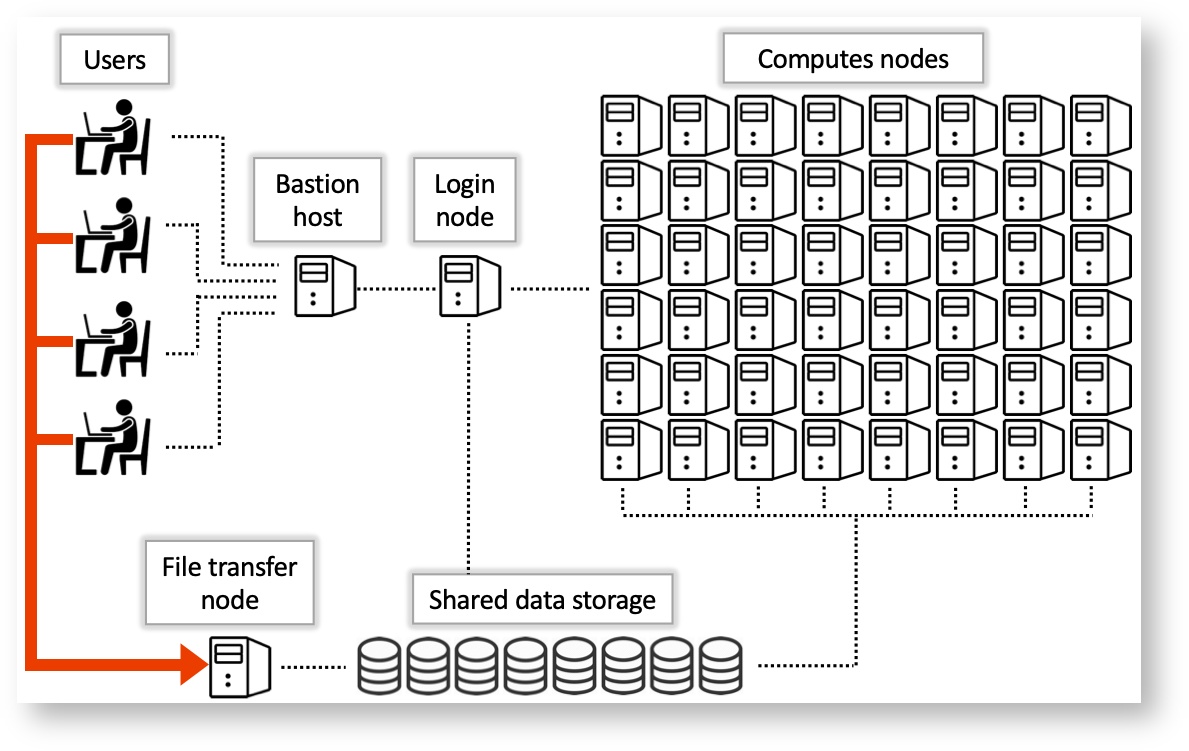
A representation of what the HPC structure and its various nodes. Source.
In the example above, we chose the Ocelote system. Notice how there are 2 other choices: Puma and El Gato. Without going in too much detail, here are some of the statistics regarding the 3 HPC systems at the UA HPC.
| System | Year of Aquisition | Processors | RAM | GPU |
|---|---|---|---|---|
| Puma | 2020 | 2x AMD Zen2 48 CPU (94 cores total) | 512GB | 6x Nvidia V100S |
| Ocelote | 2016 | 2x Xeon E5-2695v3 14-core (28 cores total) | 192GB | 46x Nvidia P100 |
| El Gato | 2013 | 2x Xeon E5-2650v2 8-core (16 core total) | 64GB | removed as obsolete |
Find the full systems specs at the official UA HPC documentatio resources page.
El Gato is the oldest system, and potentially not useful for heavy research. Puma is the newest and most requested, whislt Ocelote is the "middle child": not as popular but still able to pack a punch.
Depending on what your work is, your best bet would be Puma for heavy computation (if you are ok with waiting long queues); However, if your jobs aren't as taxing, then Ocelote could easily be a safe choice.
For this workshop, we are going to be using Ocelote.
Once past the Bastion server and logged into the Ocelote login node, you are able to submit jobs or request an interactive node. Before you do so, it is wise to check your available resources. These resources are the ones made available to you by your PI or working group.
In order for you to check your resources, type va.
(ocelote) [cosi@wentletrap ~]$ va
Windfall: Unlimited

PI: parent_1743 Total time: 100000:00:00
	Total used*: 1:00:00
	Total encumbered: 0:00:00
	Total remaining: 99999:00:00
	Group: datalab Time used: 1:00:00 Time encumbered: 0:00:00


*Usage includes all subgroups, some of which may not be displayed here
va allows you to view all of the resources available from all the groups you are part of.
There are a number of ways one can approach storage on the HPC:
- Your own folder (in
/home/): 50GB limit - Your group (in
/groups/): 500GB limit - Your PI research (in
/xdisk/): 20TB
Four the purpose of this workshop, we can access the datalab group storage in /groups/cosi (we will try and rename it in the future).
One can check queue times and sumbissions by executing the SLURM command squeue. This will display the job id, submission type (standard, windfall, high priority), name of submission, user, status (queued, running), time elapsed, number of used nodes, and nodelist.
(ocelote) [cosi@wentletrap ~]$ squeue
             JOBID PARTITION     NAME     USER ST       TIME  NODES NODELIST(REASON)
2875825_[432-1000]  standard    qchem snanayak PD       0:00      1 (AssocGrpCPUMinutesLimit)
           2890485  standard R92L_Met krishnag PD       0:00      1 (Dependency)
           2890484  standard R92L_Met krishnag PD       0:00      1 (Dependency)
           2890483  standard R92L_Met krishnag PD       0:00      1 (Dependency)
           2881573  standard R92W_Met krishnag PD       0:00      1 (Dependency)
           2881572  standard R92W_Met krishnag PD       0:00      1 (Dependency)
           2802511  standard    eigen krishnag PD       0:00      1 (Dependency)
           2949224  standard brutefor theronir PD       0:00      1 (None)
           2898419  standard start_so mmartino PD       0:00      1 (Dependency)
           2898418  standard make_sor mmartino PD       0:00      1 (Dependency)
           2898416  standard start_so mmartino PD       0:00      1 (Dependency)
           2898415  standard make_sor mmartino PD       0:00      1 (Dependency)
           2898410  standard start_so mmartino PD       0:00      1 (Dependency)
           2898409  standard make_sor mmartino PD       0:00      1 (Dependency)
              .         .        .        .     .       .         .   .
              .         .        .        .     .       .         .   .
              .         .        .        .     .       .         .   .
           2884142  windfall li_d_t_6    bubin  R 2-06:58:50      1 i5n14
           2884107  windfall li_d_t_4    bubin  R 2-07:00:26      1 i6n8
           2884098  windfall li_d_t_7    bubin  R 2-07:00:50      1 i6n5
           2880486  windfall   be_10b   teodar  R 4-22:35:44      1 i16n5
           2880487  windfall    be_9b   teodar  R 4-22:35:44      1 i16n6
           2880488  windfall    be_7b   teodar  R 4-22:35:44      1 i16n12
           2880489  windfall    be_2b   teodar  R 4-22:35:44      1 i16n16
Likely, this will output 100s of lines, therefore if you want to check on your own job, you could use the CLI and grep to select the running submission (e.g., squeue | grep <username> or squeue --user $NETID).

Slurm not Slurm.
All of the UA HPC systems run on a workload manager and job scheduler named SLURM (Simple Linux Utility for Resource Management). It's designed to manage and schedule computing resources such as CPUs, GPUs, memory, and storage across a cluster of interconnected nodes.
You can learn more on SLURM and HPC system commands here.
There are 2 ways one can submit jobs onto the HPC system. The first is to run a batch job, which is the more popular submission type, whilst the other is by requesting an interactive node.
As we are not going to be using batch submissions, we are not going to be going into too much detail. However, here is what you need to know. For more details on running batch jobs, visit the official documentation page on batch jobs.
Batch scripts require a number of job directives. These are similar to the Dockerfile instructions, but instead of telling Docker how to build the image, these instead tell the SLURM system what to do with the job. The essential directives are the following:
| Directive | Purpose |
|---|---|
#SBATCH --account=group_name |
Specify the account where hours are charged. |
#SBATCH --partition=partition_name |
Set the job partition. This determines your job's priority and the hours charged. |
#SBATCH --time=DD-HH:MM:SS |
Set the job's runtime limit in days, hours, minutes, and seconds. A single job cannot exceed 10 days or 240 hours. |
#SBATCH --nodes=N |
Allocate N nodes to your job. |
#SBATCH --cpus-per-task=M and #SBATCH --ntasks=N
|
ntasks specifies the number of tasks (or processes) the job will run. By default, you will be allocated one CPU/task. This can be increased by including the additional directive --cpus-per-task. |
#SBATCH --mem=Ngb |
Select N gb of memory per node. If "gb" is not included, this value defaults to MB. |
After setting your directives, you can instruct the HPC to do what you require similar to a bash script.

Here's an example of a batch job:

```
#!/bin/bash
#SBATCH --job-name=blast_job          # Job name
#SBATCH --partition=standard          # Sets the job priority to standard
#SBATCH --nodes=1                     # Number of nodes
#SBATCH --ntasks=1                    # Number of tasks (processes) per node
#SBATCH --cpus-per-task=4             # Number of CPU cores per task
#SBATCH --mem=8G                      # Memory per node (in this case, 8GB)
#SBATCH --time=02:00:00               # Time limit (HH:MM:SS)

# Load necessary modules
module load blast/2.12.0              # Load BLAST module (adjust version as needed)

# Change to the directory where the job will run
cd $SLURM_SUBMIT_DIR

# Define input and output files
query_file="query.fasta"              # Input query file (FASTA format)
database_file="database.fasta"        # BLAST database file (FASTA format)
output_file="blast_results.out"       # Output file for BLAST results

# Run BLAST command
blastp -query $query_file -db $database_file -out $output_file -evalue 0.001 -num_threads $SLURM_CPUS_PER_TASK
```
😏 Tip: Submitting a Batch Script 😏
- To submit jobs you need to use
sbatch, such assbatch script.slurm - To cancel your job you do
scancel, such asscancel $JOBIDorscancel -u $NETID
This will submit your job to the queue. Execution will depend on your submission type (partition).
An interactive node, unlike batch jobs which are run asynchronously, allows immediate access to compute. Similar to batch jobs, interactive nodes are submitted to the queue, but once available, you will receive a prompt for a node with the selected resources. Read more on how to launch interactive jobs in the official documentation.
!!! tip "The Quick and Dirty"
Don't need a lot of resources and just want access to the compute?

Just type `interactive`.

Disclaimer: you may require to wait longer as your job is going to fall in the `windfall` queue.
Following are a list of useful flags (options) for setting up the interactive node.
| Flag | Default value | Description | Example |
|---|---|---|---|
-n |
1 | Number of CPUs requested per node | interactive -n 8 |
-m |
4GB | Memory per CPU | interactive -m 5GB |
-a |
none | Account (group) to charge | interactive -a datalab |
--partition= |
windfall | Partition to determine CPU time charges and is set to windfall when no account is specified, and is set to standard when an account is provided. | interactive --partition=windfall |
-t |
01:00:00 | Time allocated to session. | interactive -t 08:00:00 |
-N |
1 | Number of nodes. | There is no reason to exceed 1 node unless the number of CPUs requested is greater than the number of CPUs per node on a given cluster. |
An example for an interactive node is:
interactive -n 8 -m 16GB -a datalab -t 02:00:00
The above example will request an interactive node with 8 cores, 16GB RAM, "charging" the datalab, running for 2 hours. Try it!
There are 100s of tools installed on the HPC, few of which are available on the login screen. These tools are available only during a batch job submission or within interactive jobs.
To see what tools are already running, or which are available, you will need to use the module command.
😏 Tip: Helpful module commands 😏
| Command | Purpose |
|---|---|
module list |
Lists loaded modules |
module avail |
Lists available modules |
module spider |
Lists ALL modules |
module load |
Loads a module |
module help |
Help command! |