This repository was archived by the owner on Sep 24, 2019. It is now read-only.
Main frame
This main par of this program will be seen in the main frmae. This one looks like this:
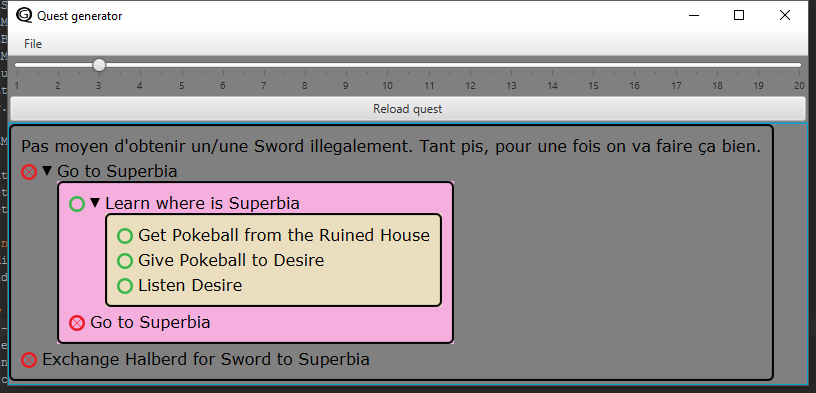
There is three major parts:
- The top bar where some commands are present.
- The top part contains some controls.
- The bottom parts is where the quest is displayed.
For the quest display, each color represent an action to do with its possible subactions. When the quest just started, you will see only the first action you have to do, and the rest will appear when you complete each step.
To mark an action as done there is two ways:
- Change the state of it manually by clicking on its icon:
- Done status:

- Not done status:

- Done status:
- Use the event frame as described here.
Further more you can see arrows next to some actions. Those are simply used to hide a block or not:
-
 shows an opened action.
 -
 shows a closed action.
The lower parts can be used to manipulate a bit the displayed data:
-
Events framewill bring you the event frame to simulate game events. -
Reload questwill generate a new quest and show it in the frame. -
Exportwill export the current displayed quest as a picture in the same folder as the JAR file. -
Switch presentation modewill change the presentation mode. Printing all the quest or only the actions done with the one need to be done. -
Switch debug modewill activate or not further informations on an action including its ActionExecutor class, objectives paths...
##Commands
- The slider allow you to change the value of the maximum depth when generation a quest. You'll have to generate a new quest to see its effects.
- The
Reload questbutton will generate a new quest and show it in the frame.
-
CTRL+Dwill switch debug mode ON/OFF, allowing to display more informations. -
CTRL+Pwill switch the presentation mode ON/OFF. -
CTRL+Rwill generate a new quest. -
CTRL+Swill export the quest. -
CTRL+Ewill bring you the event frame.
-
--debugwill turn debug mode on at start. -
--devwill turn off the presentation mode at start.
Exports will be saved in the same directory as the JAR file. You can export it in three formats:
- PNG (will only capture the current view)
- XML
- RAW (text file)
- ACTIONS (text file with only the types of actions to do)