Deploy Frontend
If you Deployed Backend first, it is well and good and Then Deploying Frontend is Better, If not First Deploy Backend here and then Deploy Frontend.
You need to Setup Cloudflare Account and get the Rclone Config from this Step.
- You can go to my Repo for the Worker Code.
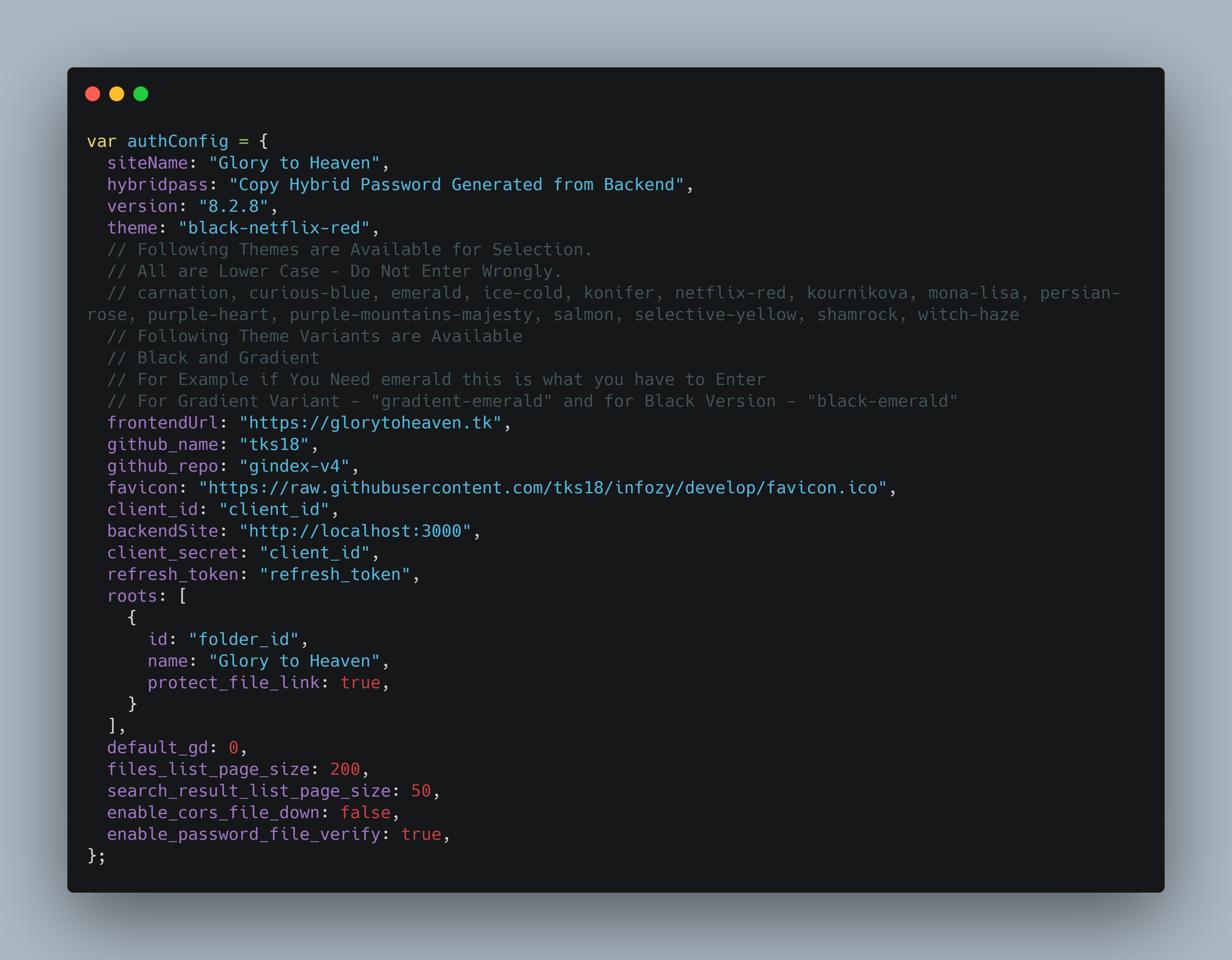
-
Sitename:
- Enter a Suitable Site name, This will be Displayed in Footer, Headers, etc..
-
hybridpass:
- This is Only for Development Purposes, You Don't Need to Fill it.
-
version:
-
For Every Update, You have to Change Only the Version for Updating You Frontend, That's all Required.
-
Whenever there's a New Release, See my Repo for New Frontend Release Number and Change that
-
Releases Page - Click Here
-
-
theme:
-
From last 2nd Release, We Have Introduced Different Themes for the Website.
-
Following Themes are Available:
- carnation
- curious-blue
- emerald
- ice-cold
- konifer
- netflix-red
- kournikova
- mona-lisa
- persian-rose
- purple-heart
- purple-mountains-majesty
- salmon
- selective-yellow
- shamrock
- witch-haze
-
Following Theme Variants are Available:
- "black" - for pitch Black Background
- "gradient" - for Gradient Themed Background
-
You have to Write in the this order: "theme_variant-theme"
-
Example:
- for Emerald Theme and Black Variant - "black-emerald"
- for Carnation theme and Gradient Variant - "gradient-carnation"
-
Do See that all are Lower Case Characters, No Upper Case Characters.
-
-
frontendurl:
-
Enter the Frontend URL to which this worker is Being Deployed.
-
Can be workers.dev domain or a Custom Domain.
-
Note: Do put (http / https) in the URL and do no Put a Trailing / at the end of the Url.
-
-
favicon:
- You can Enter a ico URL for the Favicon for the Website.
-
client_id:
-
Enter the Client ID that you got from the Rclone Config
-
If not Setted up, Go to here
-
-
backendSite:
-
Enter the Backend url to Which You have Deployed the Backend.
-
Example:
https://sample.herokuapp.com -
Note: Do put (http / https) in the URL and do no Put a Trailing / at the end of the Url.
-
-
client_secret:
-
Enter the Client Secret that you got from the Rclone Config
-
If not Setted up, Go to here
-
-
refresh_token:
-
Enter the Refresh Token that you got from the Rclone Config
-
If not Setted up, Go to here
-
-
roots:
-
Here You will Fill the Details Regarding you Folder / root in Google Drive.
-
id:
-
The root directory here refers to the root directory displayed by G-Index, which can be any directory in your network disk. Open the network disk to locate a directory or shared directory, the code at the end of the URL in the address bar is the directory ID. If the personal network disk parameter is left blank, it is the root directory of the network disk.
-
Example:
https://drive.google.com/drive/u/1/folders/###########XYZ
-
-
name:
-
Enter a Suitable Root Name, that will be displayed in Various Places.
-
This can be Anything.
-
-
Important: This project is only for personal use to share content with family and friends, do not use for commercial purpose. You are Absolutely Free to Use it for Personal and for Educational Purposes, I don't Restrict that but If I Find anyone Using for Commercial Purposes, then Strict Action can be Taken.
Is that documentation missing something? Isn't it clear enough? Help me improve it by filing a Github issue.
Wiki Documented and Structured by - Shan.tk
Support/Sponsor this Project: 

