Skip to content

For iOS iPadOS users (Working Copy)

Charles Chiu edited this page Nov 21, 2023 · 4 revisions

For video learners, here is a great video made by David Allen. (This video might be out-dated, depends on your Working Copy's version.)

NOTE: If you are a student, you can sign up github student pack and apply for free Working Copy Pro.

  1. Pay for the Pro version of the App Working Copy, it is cheap since you will never bother by iCloud crashing your Logseq anymore.
  2. Open Working Copy > Settings(⚙️) > Hosting Providers > Click Test > Sign-in to your GitHub account.
  3. Open Working Copy > click + > Clone repository > Choose your repo and hit Clone.
  4. When download is done:
    • Tap on the repo, in my case: Logseq_deb

- In the repo, tap on `Repository`

- In the `Repository`, tap on down carrot

- In the down carrot menu, choose `> Link Repository to`, then choose `Directory`.

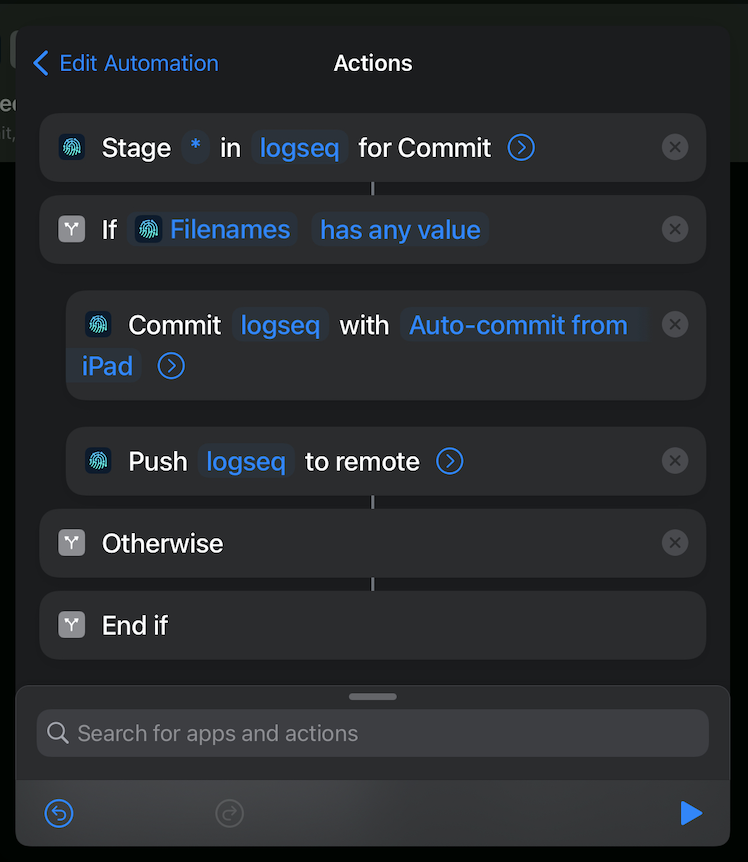
- Make sure your in `My iPhone/iPad` (I would suggest don't choose iCloud to avoid some syncing issue) > create a new sub-folder under the Logseq-icon one (I would suggest don't name the folder with the same name as your repo.) > click `Done` 5. Open `Logseq` and add new graph to that folder. 6. Open `ShortCuts` > Automation > Create Personal Automation: - On App Open: - `App` > choose `Logseq` > click `Next` - Search actions > `Pull Repository` - Repo: your Logseq repo - Turn off ask before running (or leave it on up to you) - On App Close: - `App` > choose `Logseq` > click `Next` - Search actions > - `Stage for Commit` - Path: `*`, Repo: your Logseq repo - `If` condition - Input: `Select Magic Variable` - choose `Filenames` below the first action - Condition: `has any value` - Put the following two actions `Commit Repository` and `Push Repository` under this `If` condition so that we only make a commit when changes detected therefore we can avoid empty commit - `Commit Repository` - Repo: your Logseq repo, Message: `Auto-commit from iOS/iPadOS` - NOTE: In `Commit Repository`, you can toggle off `Fail when nothing to Commit` if you find the failure notification annoying. Although I prefer to keep it toggle on to prevent empty commit and empty push. - `Push Repository` - Repo: your Logseq repo - Turn off ask before running (or leave it on up to you) - The final workflow should look like:

  1. Type something, exit Logseq, and wait few minutes to see if what you typed has also appear in GitHub.
  2. If nothing goes wrong, you are a happy Logseq user!

Clone this wiki locally