.dat File Database
The SDK scans the game files for all relevant .dat files and converts them to serialized objects.
You can update the database any time by using the top menu item: PuggosWorld /Unturned /Create Item Database.
This immediately gives us the benefit of using Unity's search functionality to find and utilize any Unturned .dat files needed. Since Unturned modding is so centered on .dat file editing, this is very useful.
In the example below, I searched for "Sedan" (a common vehicle in the game) and got the converted .dat files immediately for my viewing. Clicking on one, you can see all of it's info. See screenshot:
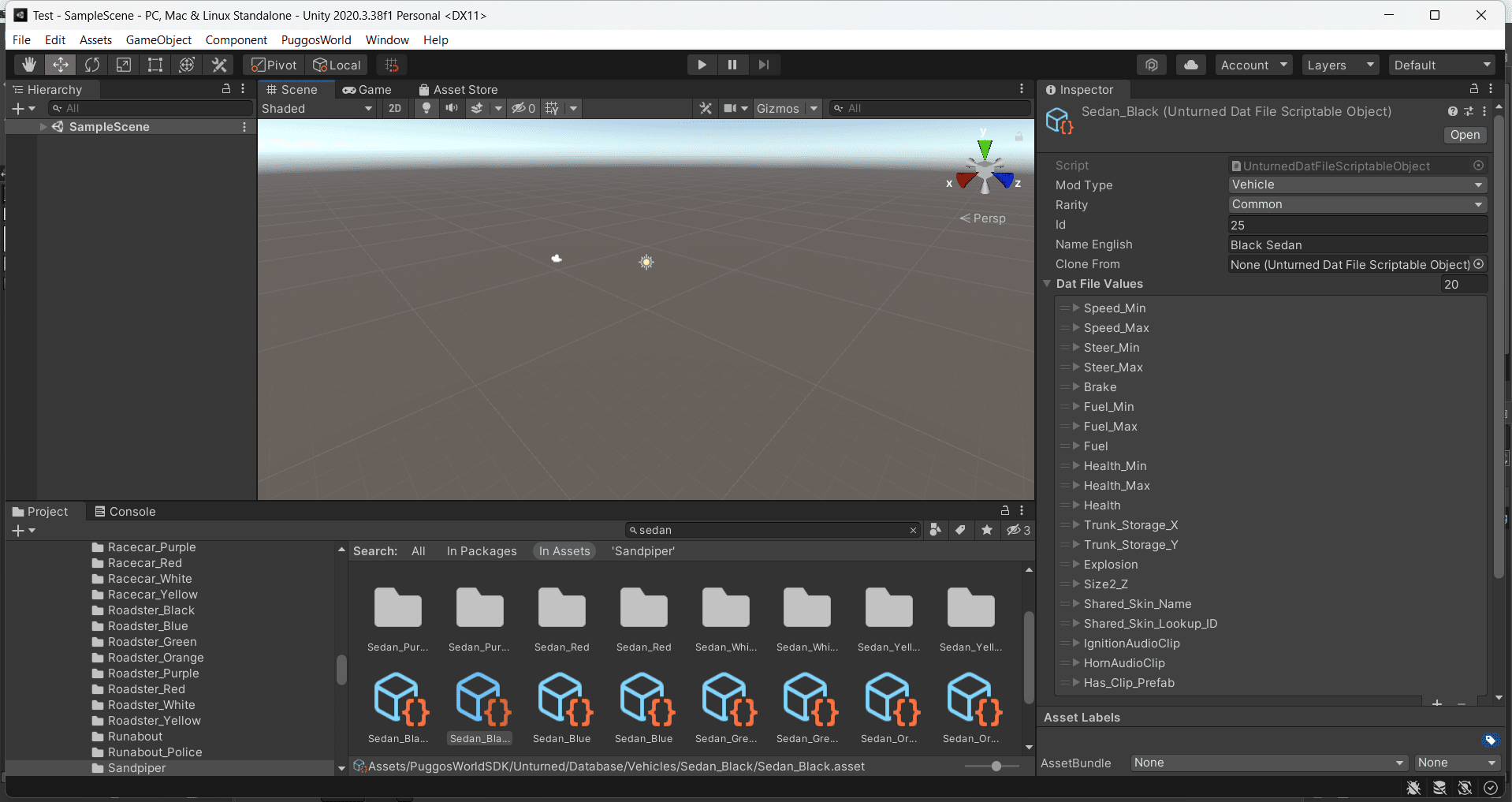
Note: The values can be seen when you unfold the list trays - typical Unity stuff.
These are actually Serialized Objects (https://docs.unity3d.com/ScriptReference/SerializedObject.html) created to work with these .dat files. When you clone them into your own mods, the SDK exports them and creates them for you in the destination mod folders. Further, the recipe (crafting) objects do the work of creating the complex blueprints upon export. I don't know about you, but as a human, I find it hard to write this way:
GUID 094226c8c545433c9855e33ae10ede0f
Type Supply
Rarity Epic
ID 8919
Size_X 2
Size_Y 2
Size_Z .5

Blueprints 5
Blueprint_0_Type Tool
Blueprint_0_Tool 137
Blueprint_0_Level 2
Blueprint_0_Skill Craft
Blueprint_0_Supplies 1
Blueprint_0_Supply_0_ID 1451
Blueprint_0_Supply_0_Amount 1
Blueprint_0_Outputs 2
Blueprint_0_Output_0_ID 8919
Blueprint_0_Output_0_Amount 3
Blueprint_0_Output_1_ID 67
Blueprint_0_Output_1_Amount 2
Blueprint_0_Build 27

Blueprint_1_Type Tool
Blueprint_1_Tool 140
Blueprint_1_Level 2
Blueprint_1_Skill Craft
Blueprint_1_Supplies 1
Blueprint_1_Supply_0_ID 1451
Blueprint_1_Supply_0_Amount 1
Blueprint_1_Outputs 2
Blueprint_1_Output_0_ID 8919
Blueprint_1_Output_0_Amount 3
Blueprint_1_Output_1_ID 67
Blueprint_1_Output_1_Amount 2
Blueprint_1_Build 27

Blueprint_2_Type Tool
Blueprint_2_Tool 120
Blueprint_2_Level 2
Blueprint_2_Skill Craft
Blueprint_2_Supplies 1
Blueprint_2_Supply_0_ID 1451
Blueprint_2_Supply_0_Amount 1
Blueprint_2_Outputs 2
Blueprint_2_Output_0_ID 8919
Blueprint_2_Output_0_Amount 3
Blueprint_2_Output_1_ID 67
Blueprint_2_Output_1_Amount 2
Blueprint_2_Build 27

Blueprint_3_Type Tool
Blueprint_3_Tool 121
Blueprint_3_Level 2
Blueprint_3_Skill Craft
Blueprint_3_Supplies 1
Blueprint_3_Supply_0_ID 1451
Blueprint_3_Supply_0_Amount 1
Blueprint_3_Outputs 2
Blueprint_3_Output_0_ID 8919
Blueprint_3_Output_0_Amount 3
Blueprint_3_Output_1_ID 67
Blueprint_3_Output_1_Amount 2
Blueprint_3_Build 27

Blueprint_4_Type Tool
Blueprint_4_Tool 139
Blueprint_4_Level 2
Blueprint_4_Skill Craft
Blueprint_4_Supplies 1
Blueprint_4_Supply_0_ID 1451
Blueprint_4_Supply_0_Amount 1
Blueprint_4_Outputs 2
Blueprint_4_Output_0_ID 8919
Blueprint_4_Output_0_Amount 3
Blueprint_4_Output_1_ID 67
Blueprint_4_Output_1_Amount 2
Blueprint_4_Build 27
...It gets even harder when you are creating items that inter-relate, or many objects like it.
Power-modders can do this stuff in their sleep. But some of us would rather focus on creating cool stuff rather than micromanaging information in .dat files. (I'm slightly dyslexic, so necessity is the mother of invention!)
Have a look at the right of this screenshot. I will explain it from top to bottom:
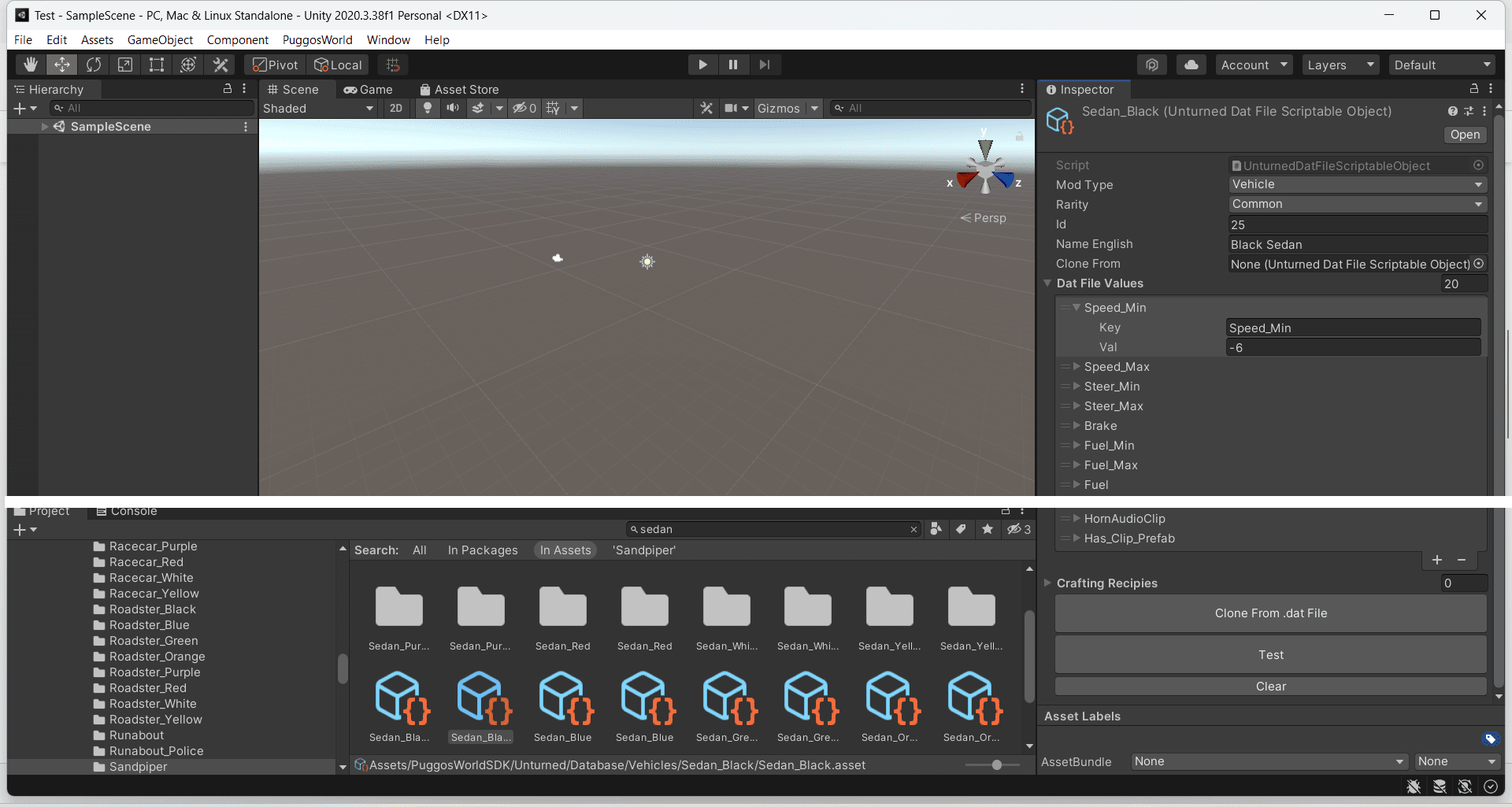
The top portion includes the most universal .dat file information as dedicated variables. The lower part (dat File Values) are general string values which make up the key / value structure of the dat files. Because there are so many key / value types to be found in the .dat files, I found it best to keep them in string form, since we don't utilize them directly in the SDK.
At the bottom of the serializable object you will find 3 buttons:
- Clone From .dat File
- Test
- Clear
Clicking in the "Clone From" variable at the top of the serializable object will open up a menu where you can search / implement any other .dat file serializable object (basic Unity stuff). Once there is another .dat file object in this field, clicking the Clone From .dat File button will transfer all information into the object. This is the simplified equivalent of searching through game files and copy/pasting information from them.
This will output the would-be .dat file information to the console. (Note, you will only see the top line unless you click the entry in the console - typical Unity workflow).
This is handy because, as a modder, you will be checking these things occasionally to make sure the mod works properly.
Clears the object. Be careful not to do this in the main imported database files. You will have to re-import them again.
This sums up the .dat file system enough for now.
Please see the other introductory subjects on the sidebar.